
You updated to iOS 27, and now the battery is in the red by evening. The phone feels warm too. Some iOS 27 battery drain in the first few days is normal. After that, one new setting, Connectivity Assist, is getting a lot of the blame, and it takes ten seconds to switch off.
Here’s the order we’d go in, quickest checks first.
First, three quick checks
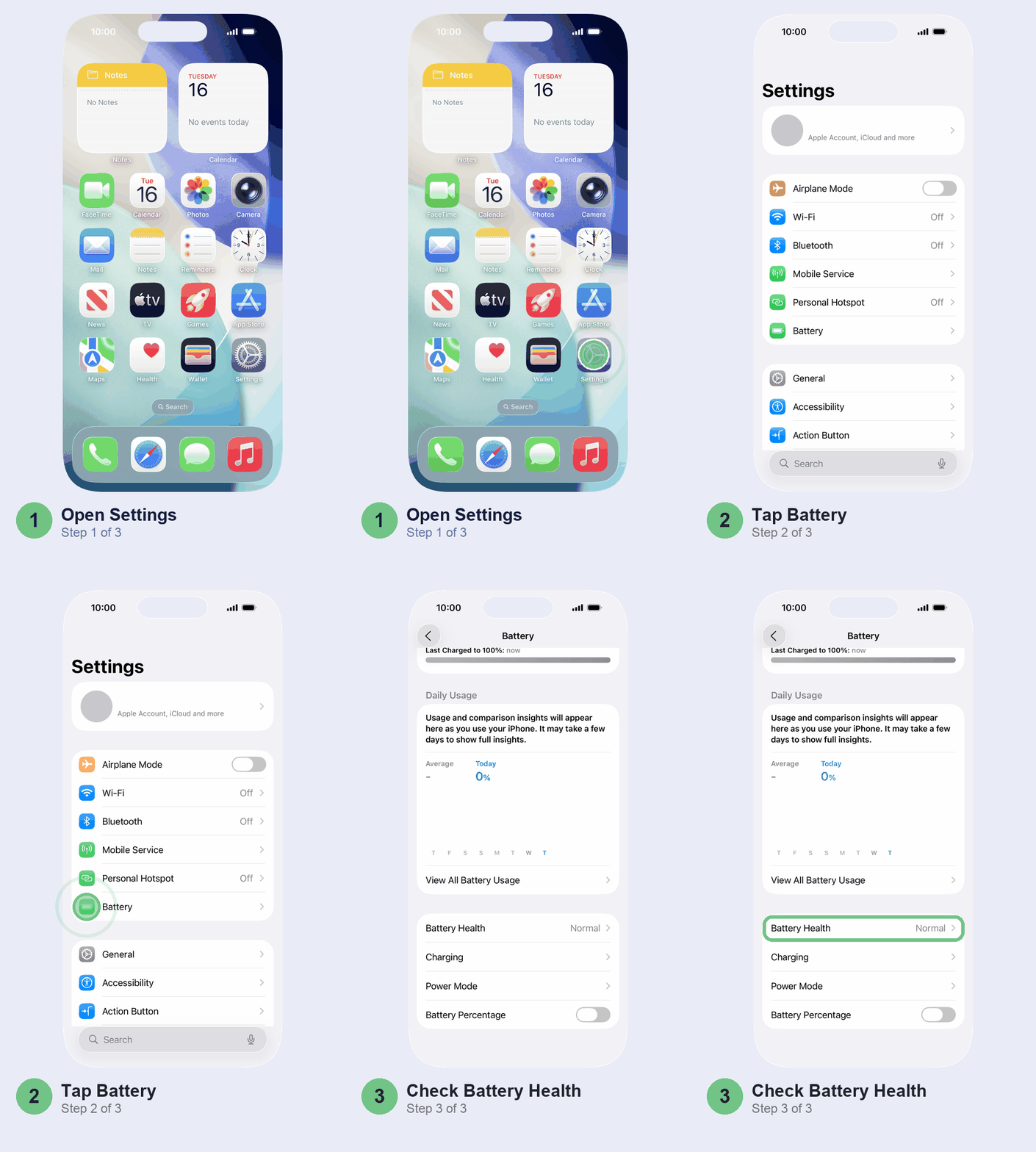
Is iOS 27 still finishing? Open Settings > Battery. If there’s a note above the usage chart called Ongoing iOS Update, your iPhone is still doing setup work from the update in the background. That work costs battery and makes the phone run warm, and it stops on its own. Give it a few days, and leave the phone on Wi-Fi and charging overnight so more of the work happens while you sleep. Battery used while it’s plugged in doesn’t count against you.
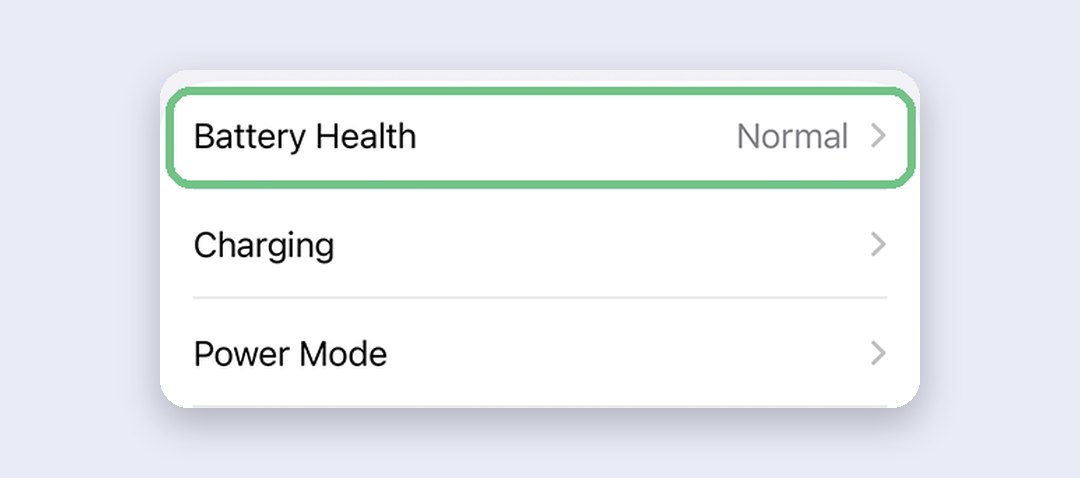
Is your iPhone more than two years old? Scroll down on the same screen and tap Battery Health. If maximum capacity is near 80% or it says Service, the update has only made an ageing battery more obvious. Skip to the battery section near the end.
Have you restarted since updating? Do it once. It takes a minute and doesn’t erase anything.
Warm is fine. Hot isn’t. If you see a temperature warning, switch the phone off and let it cool before you use or charge it again.
Why iOS 27 battery drain happens
There are usually three causes, and they overlap in the first week:
- Leftover update work. Re-indexing for search, downloading new files, updating apps. The update isn’t really done when the progress bar is, but this part passes.
- A new feature that’s on without you asking. In iOS 27 that’s mostly Connectivity Assist.
- An app that misbehaves on the new version. It sits at the top of your battery list every day.
If the Ongoing iOS Update note has gone and the battery is still bad, it’s one of the last two.
Fix 1: Turn off Connectivity Assist
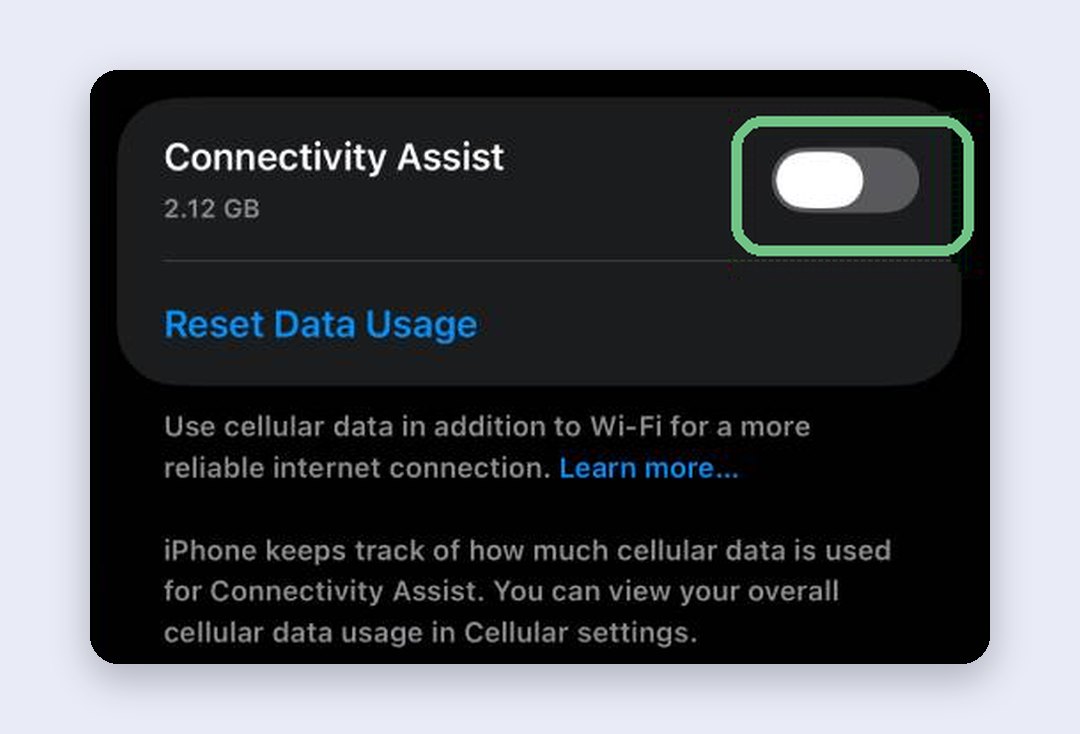
Connectivity Assist is new in iOS 27 and replaces Wi-Fi Assist. When your Wi-Fi is slow or patchy, it quietly brings in mobile data alongside it. Had Wi-Fi Assist switched on before the update? Then Connectivity Assist is already on, even if you never touched it.
It’s the most-reported culprit so far. Tom’s Guide and a stream of owners on forums say switching it off helped, though Apple hasn’t linked it to battery life. There’s a second reason to check it in India: Apple says it can use more mobile data, and on a prepaid plan that comes out of your daily data pack while you think you’re on Wi-Fi.
Go to Settings > Wi-Fi, scroll all the way down, and turn off Connectivity Assist.
Want to keep it as a backup on one shaky network, like the office Wi-Fi? Leave the main switch on and turn it off network by network instead: tap the info button next to each Wi-Fi network where you don’t need the help, and switch it off there.
Give it a day. No change? Fix 2 will show you what’s really using the battery.
Fix 2: Find the app that’s eating your battery
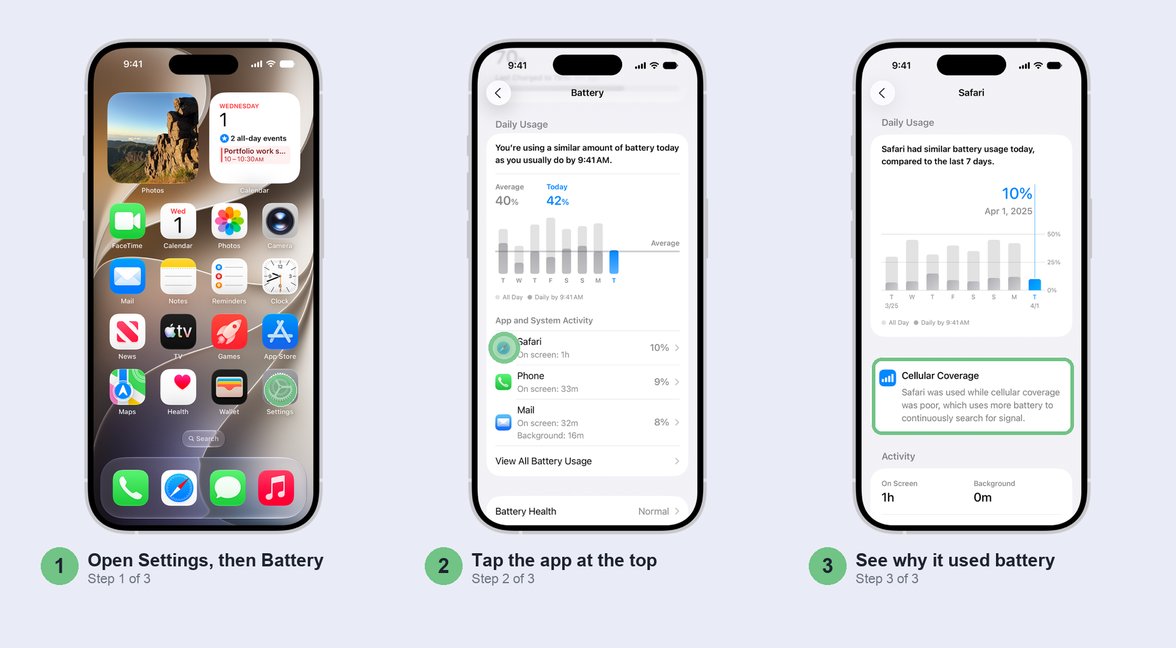
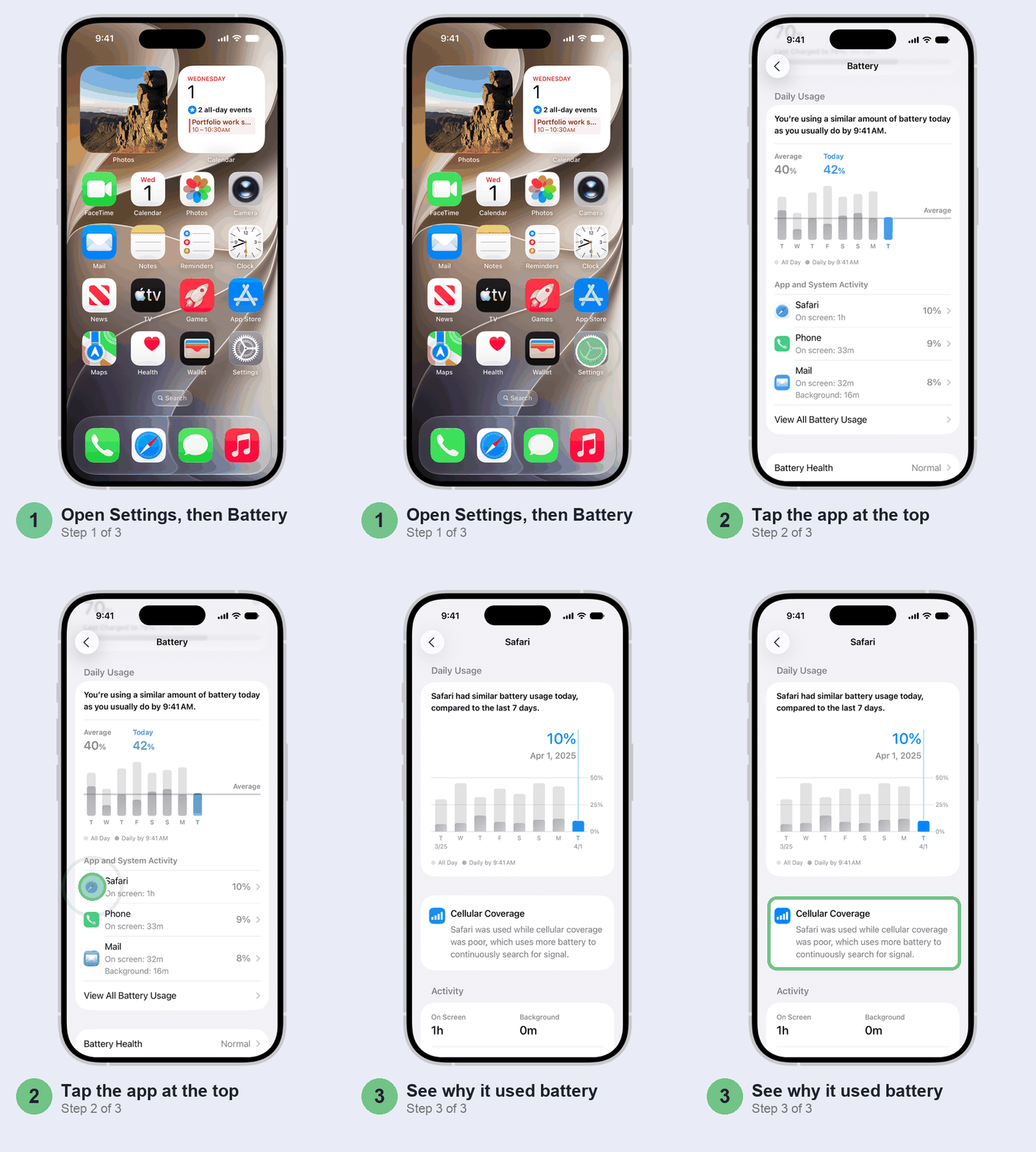
Your battery screen already names the top three culprits. Scroll down on Settings > Battery for the full list with percentages, or tap View All Battery Usage to look at earlier days.
Look for an app with a big share that you barely opened. The label under it tells you why:
- Background: it was busy while you weren’t looking. Music and navigation apps belong here; a shopping app doesn’t. Turn its background refresh off (Fix 5).
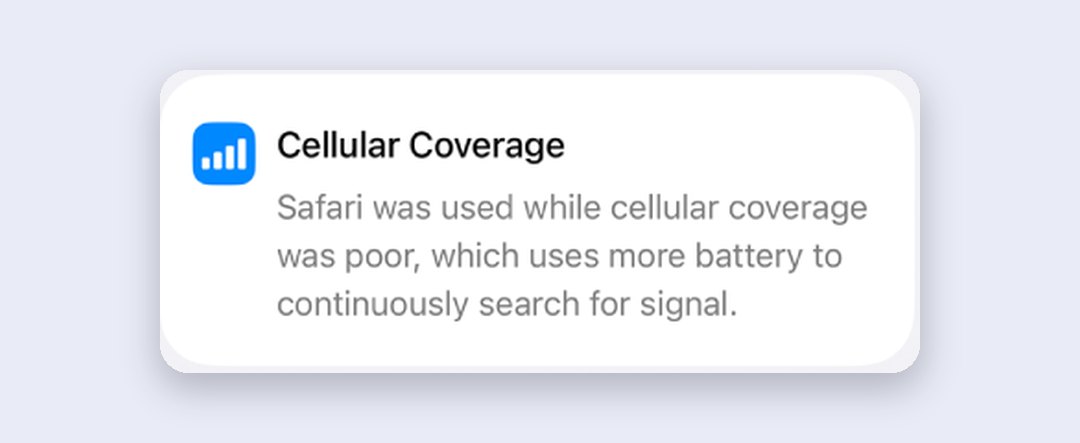
- Cellular coverage: it ran where your signal was weak. That’s your network, not the app. See Fix 6.
- Notifications: it kept waking your phone. Cut back what it can send in Settings > Notifications.
- On screen: you just used it a lot. Nothing to fix.
If the same app tops the list day after day, check the App Store for an update to it. No update yet? Fix 5 keeps it in check until there is.
Fix 3: Tame the screen
Apple’s own battery suggestions start with the screen, and two settings are worth a look:
- Always-On display, on iPhones that have it, keeps a dimmed Lock Screen lit all day, and it’s on by default. Apple switches it off in Low Power Mode, which tells you it isn’t free. Try a day without it: Settings > Display & Brightness, turn off Always On Display.
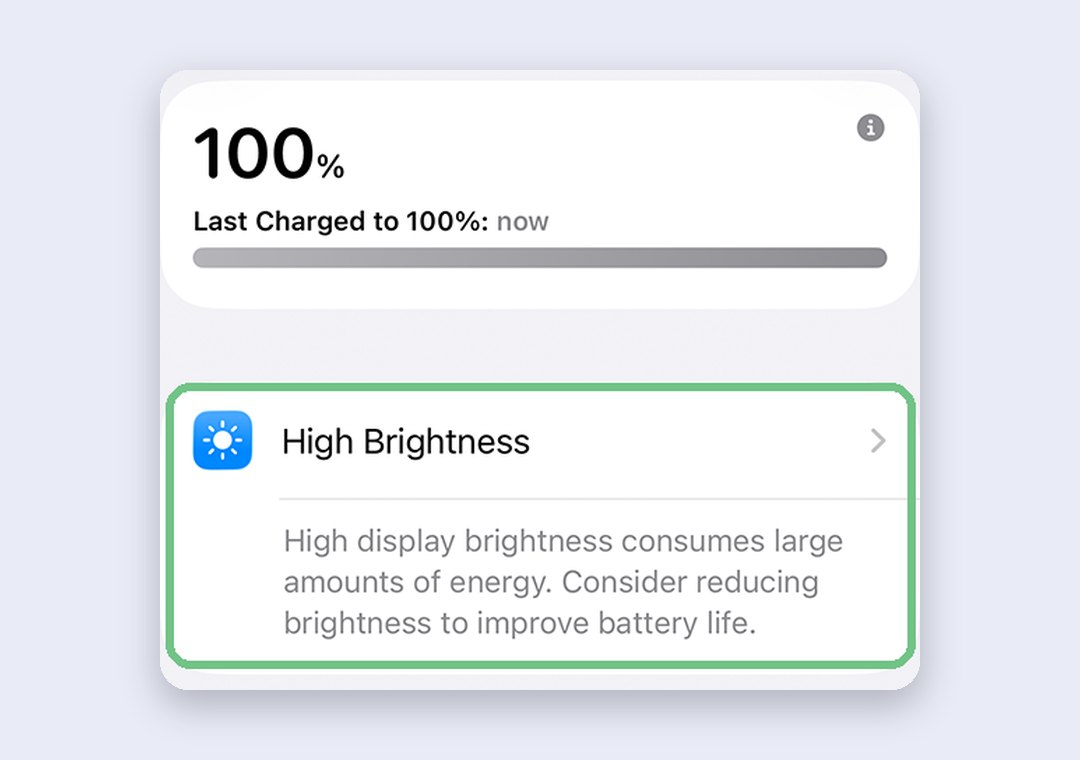
- Brightness. If your battery screen suggests turning on auto-brightness or lowering brightness, take the hint. Tapping the suggestion takes you straight to the setting.
Fix 4: Just got into Siri AI? Expect a heavier day
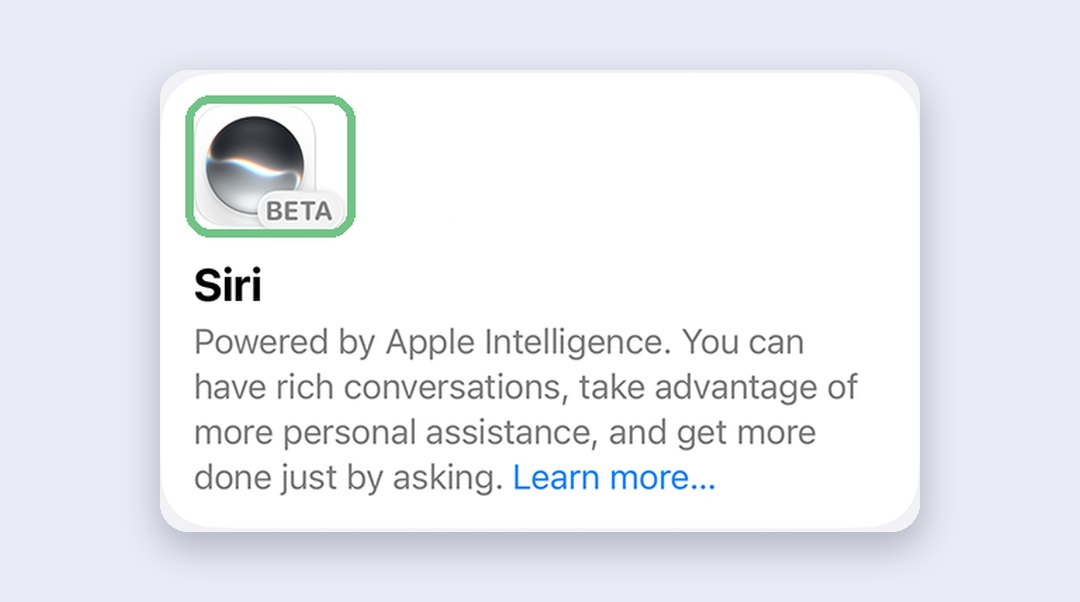
If you joined the Siri AI waitlist and the drain started when Siri AI arrived, that’s a big download plus fresh setup work landing on top of the update. Judge your battery a day after it lands, not on the day.
Fix 5: Turn off background refresh for the worst offender
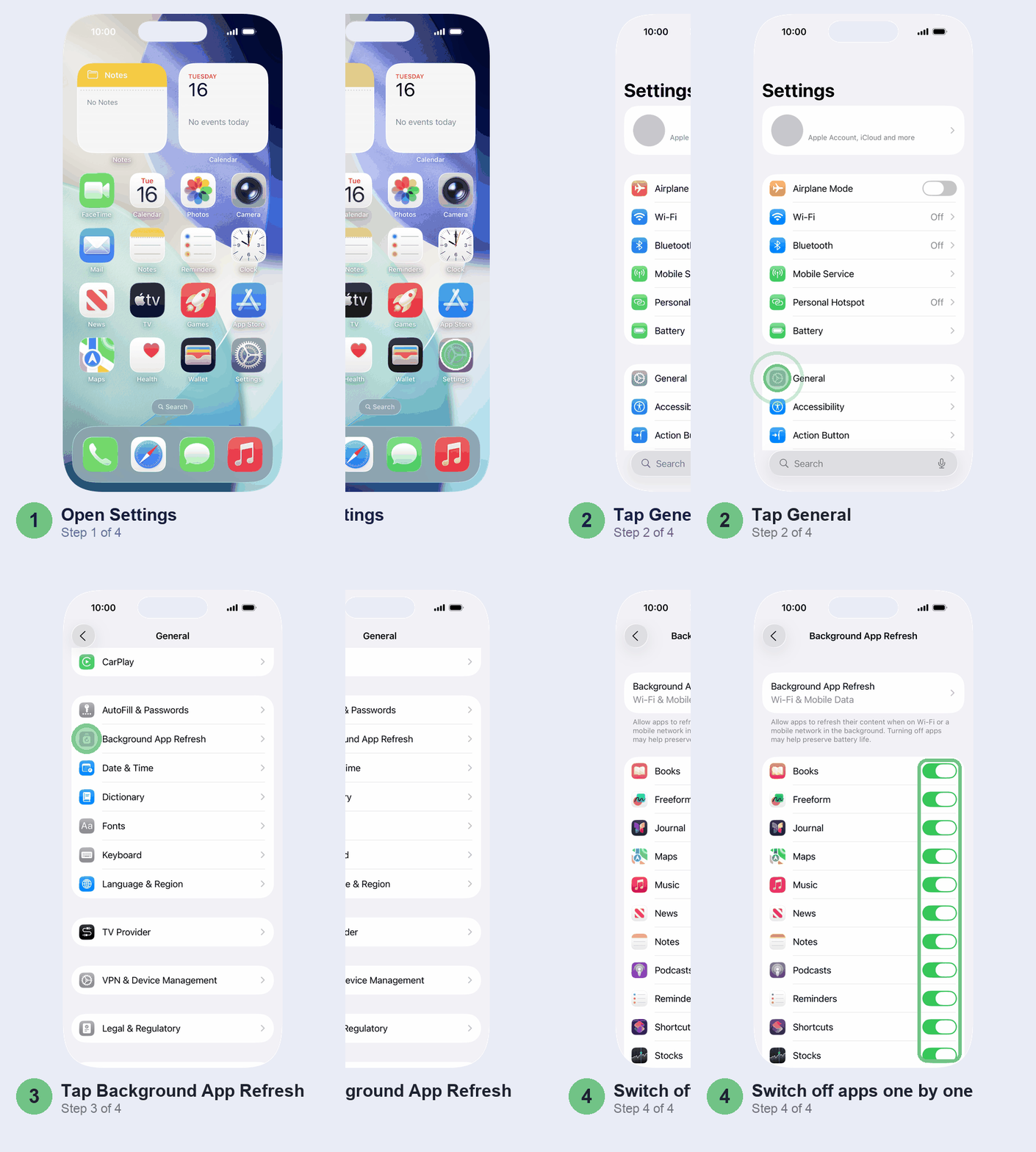
Go to Settings > General > Background App Refresh. Don’t switch the whole thing off: apps would then only check for new content when you open them. Below the main setting, each app has its own switch. Turn it off for the app you found in Fix 2, and for anything that has no reason to work while it’s closed.
Fix 6: Stop your phone fighting for signal
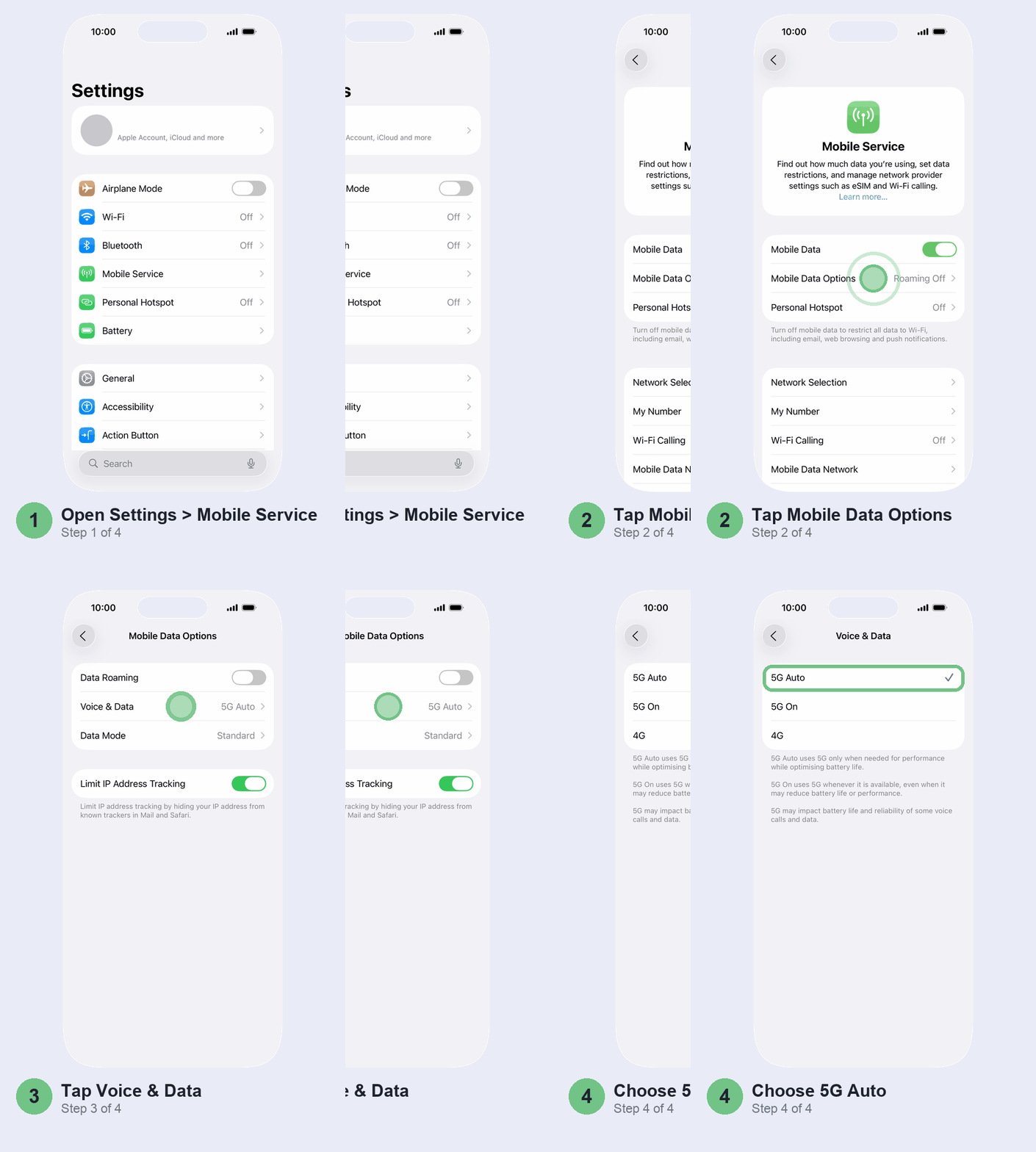
A phone hunting for a weak signal drains fast. Stay on Wi-Fi where you can. If you have Jio or Airtel 5G but coverage keeps dropping where you live or work, go to Settings > Mobile Service > Mobile Data Options > Voice & Data and choose 5G Auto. Your iPhone then drops to 4G whenever 5G wouldn’t make a real difference.
No signal at all for a while, like a basement office or a long train journey? Airplane Mode saves more than letting the phone keep searching. Just remember you’ll miss calls and SMS OTPs until you turn it off.
Fix 7: Let Adaptive Power do the work
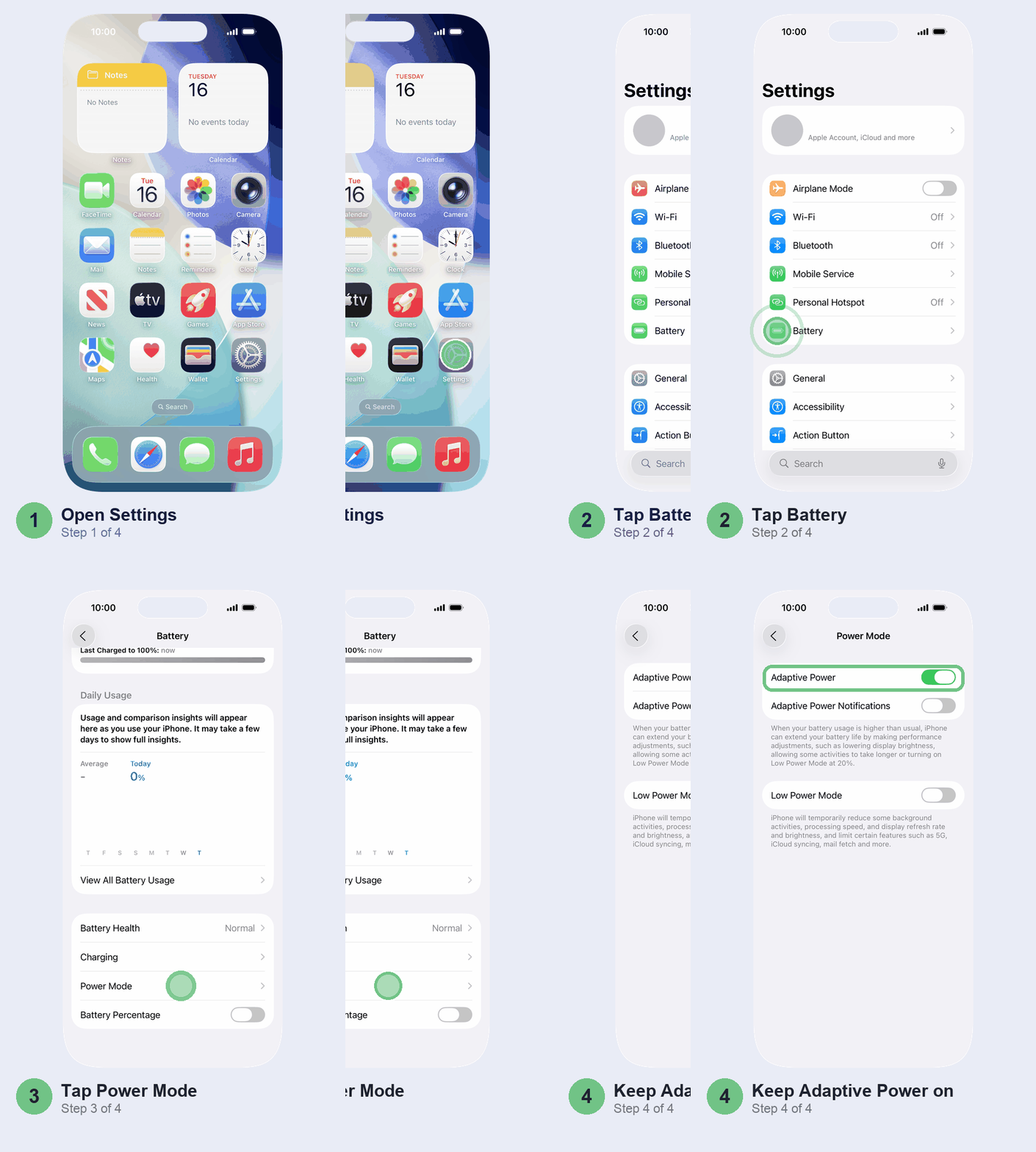
On an iPhone 15 Pro or newer, check Settings > Battery > Power Mode and make sure Adaptive Power is on. On heavy days it can lower screen brightness, hold back background activity and switch on Low Power Mode at 20%. It’s meant to be on by default, but it’s worth a look.
On the iPhone 15, 15 Plus and older models, Low Power Mode is the manual version. Add it to Control Center so it’s one tap away on a long day.
Fix 8: Install any waiting update
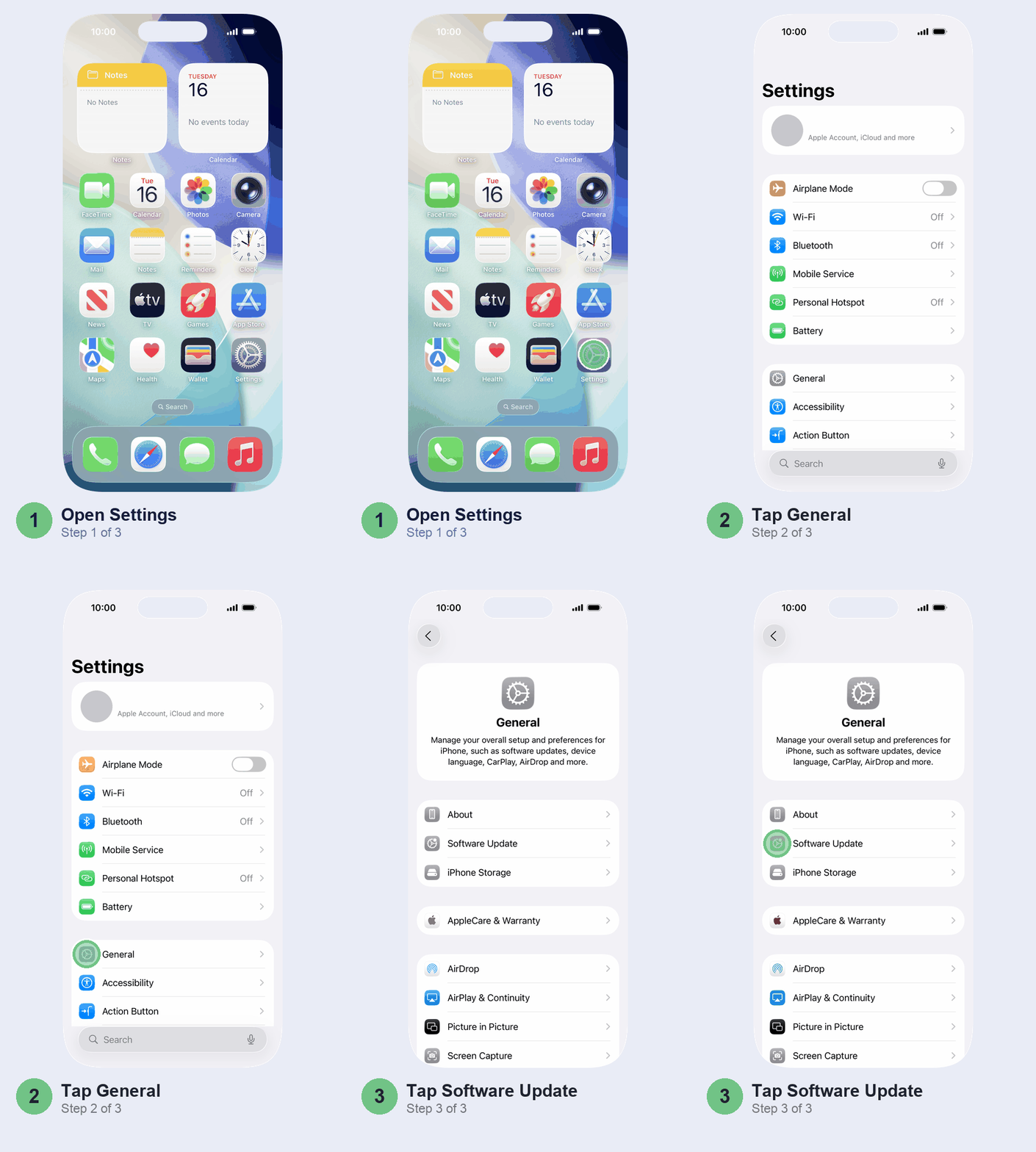
iOS 27.0.1 didn’t list a battery fix, but every point release is worth having before you dig deeper. Check Settings > General > Software Update.
Don’t bother with these
- Swiping apps away. Apple says closing your apps does nothing for overall performance, and apps you close can’t fetch new content until you open them again.
- Erasing your iPhone. A reset kicks off the same background setup all over again, and you lose a day getting the phone back to how you like it.
- Turning off everything at once. You won’t know what helped, and you’ll miss notifications you actually wanted.
When it’s the battery, not iOS 27
If a week has passed, the Ongoing iOS Update note is long gone, no app stands out and you still can’t get through the day, look at the battery itself. Go to Settings > Battery > Battery Health (on iPhone 14 and older it’s Battery Health & Charging). If it says Service, the battery may need replacing.
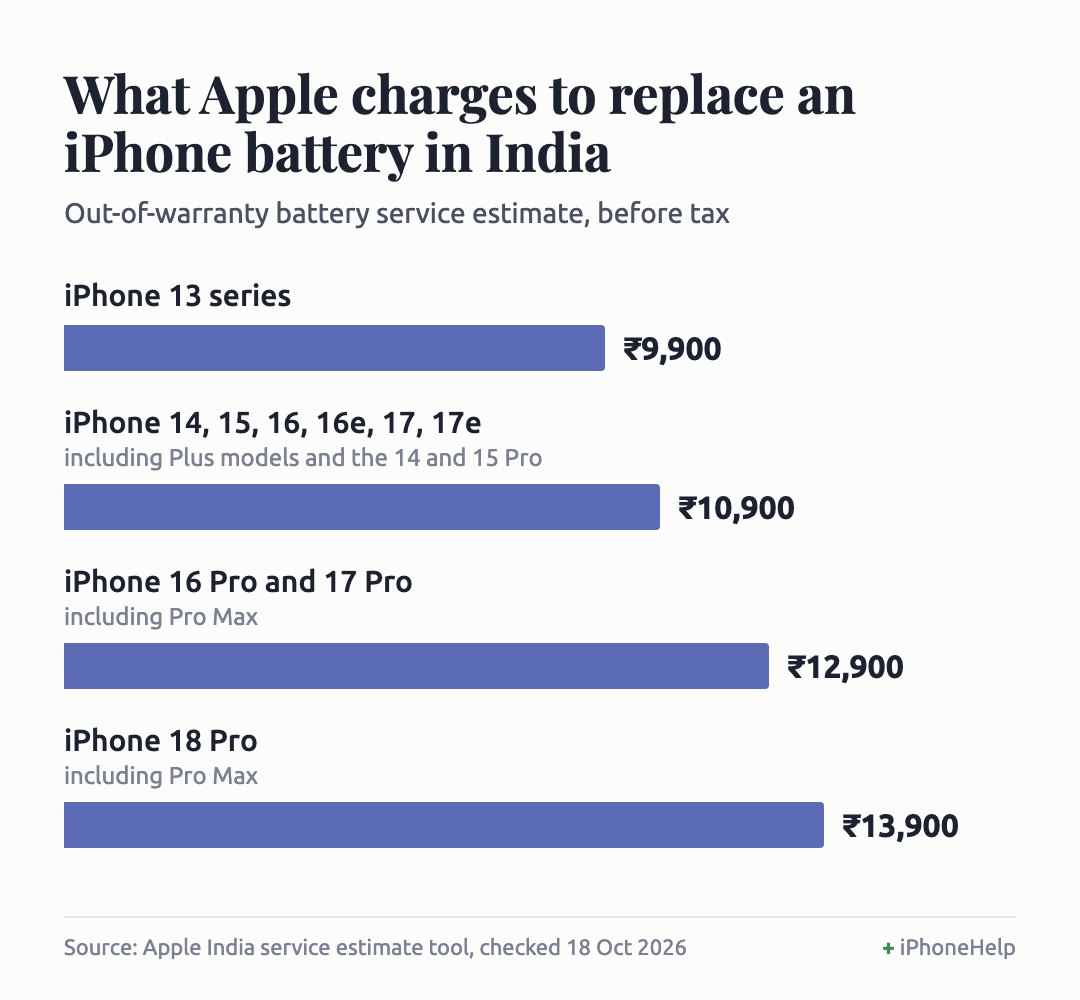
In India, AppleCare covers a replacement at no extra cost once maximum capacity drops below 80%. Without it, normal wear isn’t covered by the warranty. Apple’s out-of-warranty estimates for a battery service, before tax:
- iPhone 13 series: ₹9,900
- iPhone 14 and 15 series, iPhone 16, 16 Plus and 16e, iPhone 17 and 17e: ₹10,900
- iPhone 16 Pro and Pro Max, iPhone 17 Pro and Pro Max: ₹12,900
- iPhone 18 Pro and Pro Max: ₹13,900
Apple inspects the phone before confirming the fee. You can book at an Apple Store, an Apple Authorised Service Provider or by post through Apple’s battery service page.
Quick questions
Why is my iPhone battery draining so fast after iOS 27?
For the first few days, the update is still finishing in the background. After that, the common suspects are Connectivity Assist, one misbehaving app, the screen or weak signal.
How do I save battery on iOS 27?
Turn off Connectivity Assist if you don’t need it, keep Adaptive Power on, try a day without Always-On display, and turn off background refresh for apps that don’t need it. That covers most of it without crippling the phone.
How long does iOS 27 battery drain last?
The update work usually finishes within a few days. Watch for the Ongoing iOS Update note in Settings > Battery: once it’s gone, any drain that’s left has another cause.
How long should an iPhone battery last on iOS 27?
There’s no single number: it depends on the model, the battery’s age and how you use the phone. The best benchmark is your own phone before the update. If it’s well short of that a week later and nothing above helps, check Battery Health.
Does iOS 27.0.1 fix battery drain?
Not directly. Apple’s notes for 27.0.1 cover a Face ID restart bug on the iPhone 18 Pro, a camera colour glitch and a touchscreen freeze, with nothing about battery. Install it anyway.
Why is my iPhone hot after the iOS 27 update?
Finishing a big update is one of the normal reasons an iPhone runs warm. Keep using it unless you see a temperature warning; if you do, switch it off and let it cool.
Did turning off Connectivity Assist make a difference for you? Tell us in the comments with your iPhone model, and we’ll keep this guide updated with what’s working.
Last updated: October 2026